Miquel has a confession to make: he's a bit addicted to keyboard macros.
Because once you start noticing how many tiny repetitive things you do on a computer every single day, you also start getting irrationally annoyed by all of them.
Over the years, Miquel has added dozens of keyboard macros to automate repetitive tasks, but these are the 10 he actually uses daily.
1. Automating email sign-offs
Miquel's most-used macro is probably also the simplest: his email sign-off. He presses a key, and “Best, Miquel” appears on screen.

It's only a few words, but he writes dozens of emails and messages every day. Why type exactly the same thing every single time?
In fact, he has several variations of this macro, so he can sign off his emails differently depending on the topic.
Although sometimes he'll still write a one-off farewell if he's feeling inspired.

2. Typing repetitive personal information
Think about how many times you've typed your email address, name, phone number, or shipping address into a form. None of these takes very long, but that's exactly the point.

Macros are great for eliminating tiny, easy tasks. They're just annoying because you do them over and over again. So Miquel can press a key and immediately type something like his email address.
However, typing text is really just the most basic thing a macro can do. When you start combining keypresses, delays, and shortcuts, things get much more interesting.
3. Typing emojis with one keypress
For example, Miquel has a macro that opens the emoji picker, types the emoji name, and then selects it. That way, he can trigger all his usual emojis with a single keypress.

4. Opening Discord instantly
Especially on Discord. Every morning, one of the first things Miquel does is check Discord to read your messages.
Normally, that means opening the browser, waiting for it to load, opening his bookmarks, and finding Discord. Or he can simply press one key.

5. Filling forms automatically
But where keyboard macros really shine is with repetitive tasks, especially when you need to enter information into several fields.
That's why Miquel has macros that don't just input text. They also press the correct sequence of Tabs and Enter to fill out a form.

This is the kind of macro he loves most. Not because the task is difficult, but because it's boring, repetitive, and easy to mess up. Exactly the type of thing computers were supposed to do for us.
6. Moving spreadsheet data into forms
Here's an even more annoying example. Sometimes Miquel needs to move data from a spreadsheet into a form, one field at a time.
Copy the first column. Switch windows. Paste. Go back. Copy the second column. Switch again. Paste. Go back. Copy the third column. Switch again. Then go back, copy the fourth column, switch again, paste, and repeat the process over and over again until he goes crazy.
So he made two macros. One collects the values in sequence, and the other pastes them into the corresponding fields.

In fact, any software action you perform repeatedly is a candidate for a macro.
7. Notion formatting and shortcuts
Miquel spends a lot of time in Notion, so he's created shortcuts for things he does constantly, but that normally take several clicks or keystrokes.
For example, instead of using the mouse to turn text into a green callout, he can use a couple of macros.

Of course, he also has macros to change the font size, background color, and much more.
8. Selecting words and lines
Another thing Miquel does frequently is formatting and editing text, which requires selecting lines or words.
He can remember dozens of keyboard shortcuts, but apparently, remembering which combination of Shift, Command, Option, and arrow keys selects what is where his brain draws the line.
That's why he has a macro that recreates the correct key sequence and selects the current word or line with a single keypress.

9. VS Code terminal macros
Miquel has also configured a few macros for his VS Code terminal, including commands such as git pull, git add, and his favorite: git commit -m "".

Typing the command itself isn't particularly impressive; any text expansion tool could do that. The useful part is that the macro then moves the cursor back between the quotation marks, so he can immediately start typing the commit message.
10. Creating shortcuts for software actions that don't have one
But there's one use of macros that completely changed how Miquel thinks about keyboard shortcuts.
You've probably come across software functions that simply don't have a keyboard shortcut. For Miquel, that's Close All Other Tabs in Opera.

So he configured a macro that triggers the keyboard shortcut that focuses the menu on Mac, CTRL+F2, and then navigates to that option.
So yes, he made a keyboard shortcut for something that doesn't have one.
And this is the point where macros stopped feeling like little automations and started feeling like a way to customize how he interacts with software.

That's why Miquel uses macros so much. Most of them aren't automating huge tasks. They're removing tiny bits of friction: something he types every day, an awkward shortcut, a repetitive form, or a sequence of actions he shouldn't have to think about.
And once you start looking for those small repetitive moments, you suddenly find them everywhere.
How to create keyboard macros with Bazecor
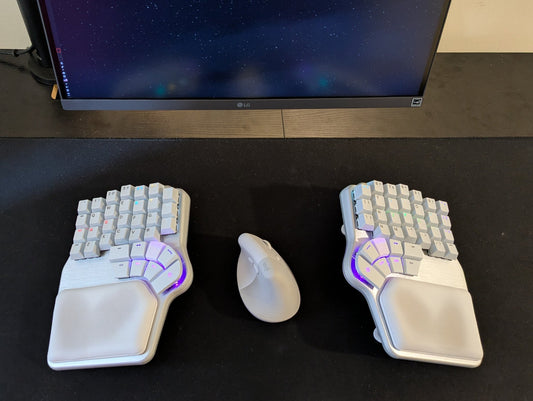
If you have a Dygma keyboard and want to try any of these yourself, setting up a macro in Bazecor is pretty simple.
Open the Macro menu and create your sequence. You can combine text, individual keypresses and releases, delays, shortcuts, and much more. Then, assign the macro to a key.

Miquel keeps most of his macros on a dedicated layer that he accesses by holding Caps Lock.

But he's sure he's only scratched the surface, so now we'd love to hear about yours.
What's the most useful macro you've created?
Join the discussion on Reddit or Discord and share your thoughts.
See you there 💜