If you ask a random person to think of a keyboard, they'll probably imagine something familiar: a large rectangular board with a number row, function keys, arrows, navigation keys, and maybe a numpad.

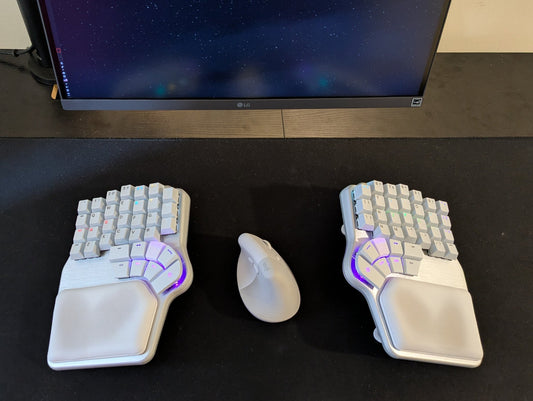
But keyboards can look very different. Some have fewer than half the keys of a traditional keyboard. Others are split into two pieces, arranged in columns, packed with thumbkeys, or reduced to just a few dozen keys.
Welcome to Weird Keyboards 101, where we're breaking down the most common keyboard sizes and layouts, from standard full-size keyboards to compact split-columnar designs.
Full-size keyboards: the classic 100% layout

A standard full-size keyboard, also known as a 100% layout, includes almost everything: function keys, a number pad, arrow keys, and a dedicated navigation cluster.
The downside is size. A large keyboard takes up a lot of desk space and pushes the mouse further to the side, which can eventually become uncomfortable. That's one of the reasons many people are happy to give up the number pad in exchange for something more compact.

TKL keyboards: the 80% layout
Remove the numpad, and you get a TKL (Tenkeyless) keyboard, also known as an 80% layout.

You still keep the function row, arrows, and navigation cluster, but the keyboard becomes noticeably narrower. However, there are still plenty of keys on the right side that can be removed or rearranged to save even more space.
75% keyboards: compact without losing much

Rearrange those remaining keys, and you get a 75% keyboard. Nothing critical disappears: the arrow keys, function row, and navigation keys are still there, but they're packed into a more compact layout.
The result is a keyboard that takes up less space while keeping most of the dedicated keys people are used to.
65% keyboards: removing the function row

If you want to reduce the amount of reaching even further, the 65% layout removes the dedicated function row.
The F keys are still available, but they're accessed through a function layer. You still keep a dedicated arrow cluster and some navigation keys, so the transition from a larger keyboard is relatively straightforward.
But an even more popular compact format is the 60% keyboard.
60% keyboards: moving more keys into layers

On a 60% keyboard, the dedicated arrow keys and navigation cluster disappear too. Those functions move into another layer.
For example, you might hold a function key and access the arrows under WASD, while the function keys appear on the number row.
Once that becomes part of your muscle memory, it can actually be faster and more comfortable than moving your entire hand to a separate arrow cluster or function row every time.
And if you're willing to take that idea even further, you can remove the number row too.
40% keyboards: fewer keys, more layers

That brings us to the 40% layout. These keyboards normally include two function keys by default: one to access keys such as the F keys and arrow keys, and another to access the missing numbers.

The idea is simple: instead of moving your hands around a large keyboard, more functions remain close to the home row.
But compact traditional keyboards still share three important limitations.
First, they force both hands to remain close together, which can put the wrists in an uncomfortable position and push the shoulders forward.

Second, some of the function keys used to access layers aren't necessarily placed in the most comfortable positions, which can make those layers less practical.
 Finally, the keys are still arranged in staggered rows. That layout was inherited from typewriters, even though our fingers naturally move more easily up and down than diagonally.

And that's where split ergonomic keyboards come in.
Split keyboards: spreading your hands
Some keyboards solve the first problem by splitting the layout into two angled sections.
The Logitech K860, for example, keeps a full-size layout, while the Keychron K15Max uses a 75% Alice-style design.

In both cases, the keyboard is divided and rotated inward so the hands can align more naturally with the arms.

But if you want more freedom to find your ideal position, you need a fully split keyboard.
Examples include the Mistel Barocco MD720 with a 75% layout and the Epomaker Split 65 with a 65% layout.

Thumbkeys: making layers easier to access
Fully splitting the keyboard helps with hand position, but it doesn't necessarily solve the second problem: having comfortable keys to access layers.
That's where thumb clusters become useful.
Keyboards such as the UHK 80 and the Dygma Raise 2 add dedicated thumbkeys that can be programmed to trigger layers and other frequently used functions.

Instead of reaching for a function key in an awkward position, you can assign that function to a key that sits directly under your thumb and customize the function layers around your own workflow.

Ortholinear keyboards: putting the keys into columns
The third problem is the staggered arrangement of traditional keyboard rows.

One solution is an ortholinear keyboard, where the keys are arranged in a straight grid rather than offset rows.
Examples include the Plank and the Preonic.

However, a regular ortholinear grid still keeps both hands close together. It also raises another question: if our fingers aren't all the same length, why should every key sit in a perfectly straight grid?

That's where split-columnar keyboards come in.
Split-columnar keyboards: staggering the columns
On a split-columnar keyboard, the keys are arranged in staggered columns instead of staggered rows. The columns can better follow the different lengths and natural movements of the fingers.

There are many different approaches to this idea.
X-bows, for example, offers several split-layout, column-staggered keyboards in different sizes.

Then there's the Kinesis Advantage 360º, an 80% keyboard that also adds a concave keywell into the mix, although that's a topic for another day.

The Dygma Sonsei: a compact unibody columnar layout
Miquel's favorite unibody columnar keyboard is the Dygma Sonsei, with its 60% layout.

It's compact enough to take almost anywhere and can sit directly on top of a laptop keyboard, making it particularly convenient when working away from a normal desk.

And columnar keyboards can go even smaller. A 40% layout can remove the number row, while a 36% layout can also remove the outer columns.

Fully split columnar keyboards
There are also larger, fully split columnar keyboards, such as the Kinesis Advantage and the Glove 80, both of which use an 80% layout.

Then there are several 60% columnar keyboards, including the Moonlander, Dygma Defy, Voyager, and Go60.
One difference is the switch type, but another, particularly important, difference is the number of thumbkeys.

The Voyager has two thumbkeys per side, the Go60 and Moonlander have four, and the Dygma Defy has eight thumbkeys per side.
That matters because thumbkeys can make it easier to access the layers that replace many of the physical keys removed from smaller layouts.
How small can a keyboard get?
Of course, you can keep going smaller.
A Corne, for example, can use a 42-key 40% layout. It can also be configured with only 36 keys by removing the outer columns.

And there are keyboards with even fewer keys than that.

And that's it, that's Weird Keyboards 101: Sizes & Layouts Explained.
Now I would like to hear from you.
Which keyboard size and layout do you use? And which of these would you be curious to try?
Join the discussion on Reddit or Discord and share your thoughts.
See you there 💜