Five years ago, our Head of Marketing, Miquel, had a completely different mouse and keyboard setup than he uses today. But getting there wasn't a one-stop trip.
It was a fascinating journey through multiple ergonomic keyboards, layouts, thumb clusters, layers, tenting systems, and form factors.
And, just like princesses in fairy tales, he had to kiss a few frogs before finding true love.
1. Going Split

Most people start their ergonomic keyboard journey to improve their comfort and productivity.
Maybe they have pain in their hands, arms, or back, or maybe they simply want to explore ways to improve their workflow.
Miquel's reason was a little more prosaic: He started working at Dygma and needed to learn everything about ergonomic keyboards. Before getting the job, he didn't even know they existed.
Luckily, he was given a Dygma Raise, which turned out to be a really good keyboard to start an ergonomic journey.

Had he been choosing for himself back then, he probably would have started with something simpler, like a Logitech K860, but in hindsight, starting with the Raise worked out well.

You can use its two halves together almost like a normal keyboard, but beneath that familiar layout, there are many ergonomic features you can gradually explore.

Little by little, Miquel started separating the two halves to improve his posture and learned to press B and Y with the correct fingers. But splitting the keyboard was only part of the journey.

Miquel also started changing his layout and experimenting with layers. That's something that's easy to overlook when getting into ergonomic keyboards: new hardware is the flashy part, but customizing your workflow can make just as much of a difference.
For example, Miquel noticed that he only pressed Space with his right thumb, so he moved Backspace to the left thumb key. Once he got used to that, he added Enter to another thumbkey and moved Command and Alt to the thumb cluster too.

Then, he got used to having his arrow keys on ESDF on Layer 2 and added more navigation shortcuts around IJKL.

Eventually, he started experimenting with Superkeys. He created a symbol layer that he could access by holding Space and configured Backspace so that holding it would trigger Shift.

All those changes meant fewer awkward stretches for Shift, Command, Alt, Enter, and Backspace, while also making symbols and navigation much easier to reach. But not every experiment worked.

Miquel tried creating a number pad layer around K, and he hated it. The staggered layout kept throwing him off as he tried to find the numbers on the virtual number pad.
The good thing is that this failure actually led to the next stage of his ergonomic keyboard journey. By then, about half a year had passed, and Dygma had just announced the Dygma Defy project, its new columnar keyboard.

That raised a new question: could the number pad layer work better on a columnar layout? Conveniently, switching to columnar would also prepare Miquel to test the first functional Defy prototypes once they became available.
2. Switching from a staggered to a columnar keyboard

So, Miquel got a Moonlander. It took him around three or four weeks to get used to the columnar layout. At first, he only used it for an hour or so after work, but after a couple of weeks, he switched completely.

The hardest keys for him were X and especially C. It turned out he'd been typing them with the wrong fingers for years.
If you're thinking about making the same change, Dygma has a complete video on how to transition to a columnar keyboard.
Once Miquel got used to the columnar layout, he really liked it. However, he struggled a bit with the Moonlander's thumb cluster.
His thumb naturally rested right on the hinge between the main keypad and the thumb cluster.
 That meant the main thumb key wasn't in the most comfortable position for him, and he had to reach farther for keys he used constantly, such as Enter or Layer 2.

Fortunately, that problem disappeared the moment he managed to snatch one of the first working prototypes of the Dygma Defy.

3. Thumb cluster with the Dygma Defy

Suddenly, Miquel's thumb rested naturally in the home position of the thumb cluster, and he had more thumbkeys that he could reach comfortably.

Now he was finally ready to revisit his old enemy: the number pad layer.
And this time, it worked. He created a One-Shot layer on the key where you'd normally find Shift.

He could hold it down to type a few numbers, or double-tap it to lock the layer and turn the keyboard into a number pad.

He could also type numbers with both hands, which meant he could work in an Excel sheet with his left hand on the keyboard and his right hand on the mouse.

Miquel doesn't remember exactly how long it took him to learn it, but now it's so deeply ingrained in his brain that he barely uses the physical number row at all. He uses that layer even when he only needs to type a single digit.

And that taught him something important: he didn't actually need as many physical keys as he thought.
4. Testing keyboard tenting

Before going smaller, there was another major ergonomic feature Miquel wanted to explore: tenting.

When you type on a normal keyboard, your palms face downward. That makes the bones in your arms cross, increasing tension in your forearm. Tenting rotates the keyboard laterally so your hands stay closer to a neutral position.

It's one of the most loved features on Dygma keyboards, and it can be tilted from just 5° to 60°.

But for Miquel, it wasn't a game-changer, probably for two reasons. First, the keyboard raises, which usually means the chair also needs to be slightly higher. Because Miquel has a short torso, he couldn't comfortably raise his chair much more.

Second, he has never really experienced discomfort in his forearms. So, for him, the benefits didn't outweigh the downsides, and he ended up using the keyboard at around 5 or 10°.

That doesn't mean tenting isn't good. Quite the opposite. A lot of people love it, and it's absolutely something worth trying. It just wasn't particularly important for Miquel.
And that's something that kept appearing throughout his journey: an ergonomic feature can make perfect sense in theory and still not be particularly useful for a specific person.
5. Exploring concave key wells

After tenting, Miquel wanted to explore something completely different: a concave key well.

On a concave key well, the keys aren't arranged on a flat surface. Instead, they're positioned in a curved shape that follows the natural arc of the fingers.
With Miquel's medium-sized hands, typing on one feels fantastic. Some people with bigger hands, especially those with longer fingers, report that certain key wells can feel a little cramped, but for Miquel, the basic concept works really well.

However, liking one ergonomic feature doesn't necessarily mean liking the whole keyboard.
On the Kinesis Advantage, Miquel ran into a problem similar to the one he had with tenting: the keyboard was simply too tall for him.

The Glove80 solved that to some extent thanks to its low-profile switches, but then he encountered a problem similar to the one he had with the Moonlander: the thumb cluster.

To press the thumbkeys comfortably, Miquel had to curl his thumb inward.

If he left his thumb extended, as he naturally does, it would hit the top row of the thumb cluster. That's something he personally dislikes, and it's also the reason he doesn't normally use the bottom row of the thumb cluster on the Dygma Defy.

On the Defy, he can press the top row of thumbkeys with his thumb completely extended. He also found that he could comfortably reach only two thumbkeys per side on the Glove80, maybe three, while on the Defy, he can reach up to five.

There was another small detail he didn't expect: Miquel doesn't particularly enjoy having his fingers sitting lower than his thumb. Somehow, that makes pressing the thumbkeys feel like it requires more effort.
Again, none of this means that the Glove80 or the Kinesis is a bad keyboard. They're simply examples of how specific ergonomic features interact differently with different hands, bodies, and preferences.
By this point, Miquel was beginning to realize that the ergonomic keyboard journey is a bit of a labyrinth. You explore one path, discover something you like, hit a dead end, turn around, and try another.

And to make things more complicated, the exit is different for everybody. Which is probably why, at some point, Miquel ended up trying the weird one.
6. Trying a keyboard and mouse hybrid

The Lynxware Cat is essentially a keyboard-and-mouse hybrid. On paper, the idea is awesome. In practice, though, it wasn't for Miquel.

There wasn't one huge problem. Instead, it was a combination of smaller things:
- The unusual feel of the keycaps and switches.

- How difficult it was to find the homing position.
- The aggressive pinky stagger.

- The overwhelming number of thumbkeys.

Ultimately, what tipped the scales was that it didn't work particularly well as a mouse. Maybe it was because of the sensor or simply because using it meant moving a huge piece of keyboard around.

It was trying to solve so many things at once that, for Miquel, the compromises outweighed the benefits.
7. Going smaller!

Miquel took a couple of steps back and revisited a question he'd forgotten about: Does he really need so many keys?
That's when he got a 42-key low-profile Corne.

There's something incredibly cool about a tiny keyboard, especially with a blank Lamé keycap set, and surprisingly, it didn't take him very long to get used to it.

By that point, he wasn't really using the number row anyway. He was already used to having navigation, symbols, and a number pad on different layers, so removing those physical keys wasn't as dramatic as it might seem.

He also loved how little space it took up in his backpack. He could take it almost anywhere.

But that experience taught Miquel something else: portability isn't just about size.
The fact that his Corne wasn't wireless didn't help, but even with a compact wireless split keyboard, dealing with two separate halves still isn't always ideal.
At a proper desk, that's fine.

On a train, on top of a laptop, or when there are only five minutes before a meeting, not so much.

And that's basically the problem Miquel's latest keyboard solved.
8. Where the journey is now: the Dygma Sonsei

Miquel's latest keyboard is the Dygma Sonsei.

Ironically, it has a number row he doesn't really need, but it combines almost everything he discovered he personally values throughout this five-year ergonomic keyboard journey.
- It has a columnar split layout.
- It has thumbkeys he can reach without curling his thumb.
- It's light and compact.
- It's fully programmable, so he can keep all his layers.
- It's wireless.
- And, most importantly for portability, it's a single piece.

Miquel can take it out of his backpack, put it on a table, or even place it directly on top of his laptop and start working.

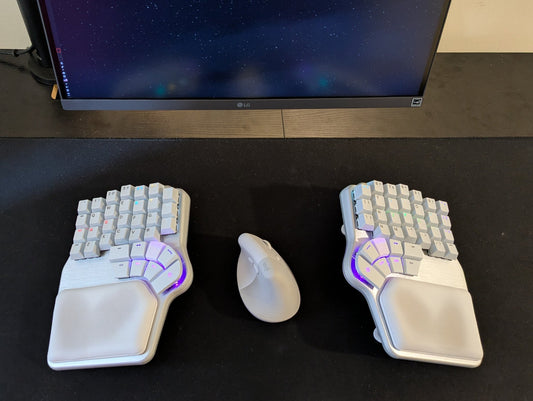
So, for now, this is where his ergonomic keyboard journey has led: a Dygma Defy at home and a Dygma Sonsei whenever he's on the go, including at the office, where he might have meetings in different rooms throughout the day.

But if these five years have taught him anything, it's that there isn't one perfect ergonomic keyboard for everybody.

That's really what the ergonomic keyboard journey is about: experimenting, keeping what works, discarding what doesn't, and gradually learning what the ideal setup actually looks like.
And who knows? Miquel might not even be at the end of his journey yet. For example, he's tried keyboards with integrated pointing devices such as trackpads and TrackPoints, but none have convinced him yet, and there are still more paths he hasn't fully explored.

Now we'd love to hear about yours.
What keyboard did you start with? What have you tried along the way? And where are you now?
Join the discussion on Reddit or Discord and share your thoughts.
See you there 💜