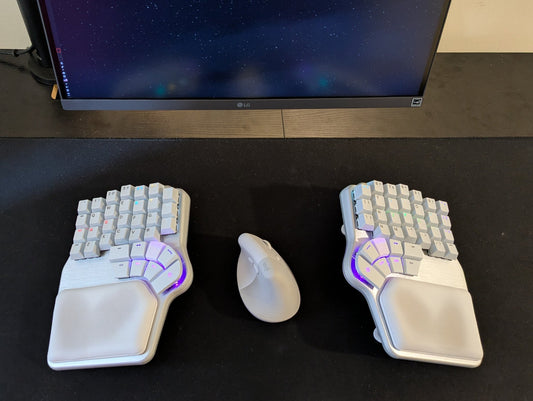
One of the most distinctive features of ergonomic keyboards is the thumb cluster. Instead of a single long spacebar, you get multiple keys designed specifically for your thumbs.
This can be intimidating at first, but once you get used to them, you'll never want to live without them. In fact, you might feel like you need more!
The goal of this post is simple: help you master your thumb cluster, from the very basics, such as how to start using them, to the most advanced features to pack them with useful functions.
Step 1: Understanding the basic configuration
Let’s start with the basics. Both the Dygma Raise 2 and the Dygma Defy come with a default thumbkey configuration preinstalled, but you can recreate this setup on any ergonomic keyboard with a similar number of thumbkeys.
The Dygma Raise 2 was designed to be easy to transition to. That’s why, in the default configuration, all four main thumbkeys are assigned to SPACE. This makes the switch from a traditional keyboard far less disruptive, since your most common key behaves exactly as expected.

On the bottom row, you'll find Enter and Backspace on the left-hand side, and DEL on the right-hand side. Those are keys that we use a lot and are difficult to reach. That way, you can easily press those keys without having to move your hand.
Those bottom thumbkeys are also used to access the function layers. Layer 2 has the arrows and number pad, and layer 3 has the Fkeys, media keys, and other functions.

You'll notice that some of the keys have 2 functions, like Enter and Layer 3. That's one feature that's going to come in handy with thumbkeys: you can make a key behave differently when you TAP it (Enter) and when you HOLD it (layer or modifier).

You will also find those keys in the default thumb cluster for the Dygma Defy.

This thumb cluster is a bit more crowded because the Defy doesn't have a modifier row like the Dygma Raise 2, so besides SPACE, ENTER, and BACKSPACE, as well as the keys to access layer 2 and layer 3, you'll also find CTRL, CMD/WIN, and ALT.
Some of them are the special 2in1 keys that we mentioned before, such as Backspace/CTRL or Enter/ALT.
Since the Dygma Defy has 8 thumbkeys on each side, and not all as equally easy to reach, there are some keys with secondary functions, such as battery reading, BT pairing, a Superkey for copying and pasting, an example macro key, and even two unassigned keys for you to decide what to do with them.

Step 2: Customizing your thumbkeys
Ok, now that we've mastered the default, let's start customizing the thumbkeys.
Here's our recommendation: record yourself typing and take a good look at which key you naturally use to press SPACE. Most of us use only one of our two thumbs for SPACE, so that frees up other keys.

For example, if you press SPACE mainly with your right thumb, you can assign frequently used functions like CMD, CTRL, ALT, or Backspace to the left primary thumbkey.
You can do the same with the Defy and with other keys like Enter or Backspace.

Here are a couple of examples from other team members.
Manel, our Head of Product, has large hands and places them at a slight angle on the keyboard. His thumbs naturally rest on outer thumbkeys, so he moved SPACE to those positions. You can also see Enter on both sides, Backspace and DEL on the left, and the modifiers split between both sides, with CMD and Shift being in comfortable spots for him.

Finally, he's using a One-shot-layer key on both sides to easily access layer 2, which he uses for navigation, a number pad, and Fkeys. One-shot layers are particularly useful: tap the key, and you'll move to that layer for just one keypress. Hold the key to shift to that layer while holding it. Double-tap to lock that layer until you tap the key again.

Ana, our video editor, takes a different approach. She mainly presses SPACE with her right thumb, so she uses the opposite key for Backspace. Then she has CMD and ALT to the left (CMD is the most used modifier on Mac, just like CTRL on Windows) and Enter on the outermost key on both sides. On her right hand, she has set up the right ALT and CTRL keys, which are barely used on Mac.
Ana uses emojis a lot, so she has one of her thumbkeys set to a shortcut that opens the emoji picker on Mac.

As Manel, she uses one-shot keys to access her layer 2, where she has arrows and multiple shortcuts.

The important thing to understand is that none of these setups was created overnight. They evolved over months. We strongly recommend changing one key at a time. That way, you won't feel overwhelmed by the changes, and you'll be able to gradually train your muscle memory to the new location of the keys.
If you think a key would be great in a certain position, don't be afraid to undo the change if it doesn't work out; change isn't always better.

Step 3: Supercharge your thumbkeys
With time, you'll find that you want to add more and more things to your thumb cluster: more functions, more layers, more modifiers... so much, that you might run out of thumb keys.
This is where Superkeys come to the rescue. Superkeys allow assigning up to 5 functions to a single key, but for thumbkeys, we recommend using only TAP and HOLD. That way, you can have a key on TAP and a modifier or layer change on HOLD.

Here are a couple of examples of layouts with multiple thumbkeys using Superkeys.
For example, our CEO, Luis, has multiple Superkeys on his thumb cluster, like Space / L2 (his editing layer), Delete / CMD, or Backspace / Layer 3 (his navigation layer). However, you'll notice that his main thumbkeys have only one function: space on the right and shift on the left.
Luis also has keys like ALT, which he strategically places next to other modifiers like Shift or CMD, so he can press two or three of them at once with his thumb.

Miquel has taken it a bit further, and he even uses Superkeys on those. In his case, Space / Layer 4 (his symbols layer), and Backspace / Shift.
His other superkeys are Enter / L2 (his navigation layer), DEL / CMD, and Enter / Layer 6 (his mouse layer).
He can't comfortably curl his thumbs, so his bottom-row thumbkeys are paired with secondary functions like Battery level or BT pairing.

This requires a bit of adjustment, as sometimes you might get the TAP when you wanted the HOLD, and vice versa. Fortunately, you can customize various settings under Preferences> Typing and Keys.
Our recommendation is to set the Overlap Threshold to 80% or higher and the minimum hold time to 60ms or higher. If you get accidental holds, increase them; if you get accidental taps, reduce them.

Bonus: Think outside the box
But what if, even with Superkeys, you feel like you need MORE thumbkeys? Well, then it's time to think outside the box. Or in this case, outside the thumbcluster.
With time, you will discover that some functions work better elsewhere.
For example, instead of CAPSLOCK, Miquel has TAB and a layer key that he uses for formatting shortcuts. And Luis, our CEO, has ENTER and Layer 4, his media key layer.

Another idea: Miquel has CTRL assigned to my A key with a superkey, because on Mac, CTRL + TAB cycles through tabs in his browser. It's super easy, comfy, and faster.
This is known as home-row-modifiers. Miquel only has CTRL, but many people prefer to have all their modifiers in the home row.

If you are curious about how to do that, check out this other video where we share tips and tricks for configuring them.
Now we would like to hear from you! How is your thumb cluster configured? Would you be able to go back to a normal keyboard if you had to, or would you miss your thumbkeys dearly?